


 Written by Olga Kepa, MuleSoft Developer,
Sept 15, 2026
Written by Olga Kepa, MuleSoft Developer,
Sept 15, 2026
Welcome to the 11th (yes, 11th!) part of my blog series on MuleSoft's Anypoint Code Builder.
A lot has changed since I first started exploring the development environment. With every release, Anypoint Code Builder has become more capable and easier to navigate, helping developers spend less time searching through tricky projects and more time building, testing and improving integrations.
The Spring and Summer 2026 releases continue that progress. Alongside several useful updates to the user interface, we’re seeing AI play a more practical role in development. New capabilities can now help developers understand existing flows, manage API specification versions and generate documentation across a project.
In this article, I’ll take you through five features that caught my attention:
- Descriptive UI for visualising flows
- Direct navigation to flows in reusable libraries
- Easier management of global configuration elements
- API specification version management
- AI-generated flow and component descriptions
If you’d like to catch up on the previous instalment first, take a look at how MuleSoft Dev Agent can help create MUnit tests. Otherwise, let’s explore what’s new and what each update could mean for MuleSoft teams.
1. Descriptive User Interface
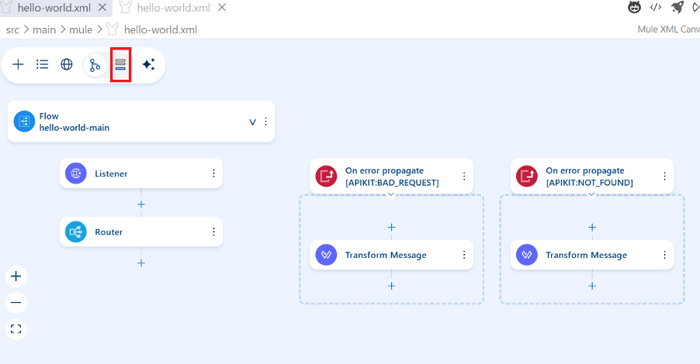
With a Descriptive UI, we’re able to have a vertical layout with AI-generated descriptions for each component. To switch it on we need to click on the icon highlighted in red.
We can now see that Anypoint Code Builder has generated a description for each component explaining what it does.
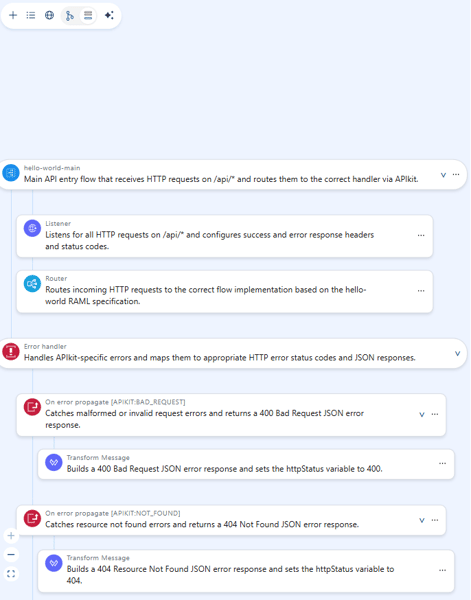
I think it’s a great feature that helps us to understand what is happening in the flow. The only drawback is that it can get quite lengthy if your flow is built with many components!
The additional context could be particularly useful when opening an unfamiliar project or returning to an integration that hasn’t been touched for some time. Rather than relying on component names alone, developers can get a quicker sense of how the flow works directly from the canvas.
Why this matters
Integrations often remain in use long after they were first developed. Making flows easier to understand can support smoother handovers, help new developers get up to speed and reduce reliance on knowledge held by one person.
2. Navigating to Flows in Reusable Libraries
We’re now able to go to referenced flows by clicking the three dots on the Flow Reference component > Go to Flow.
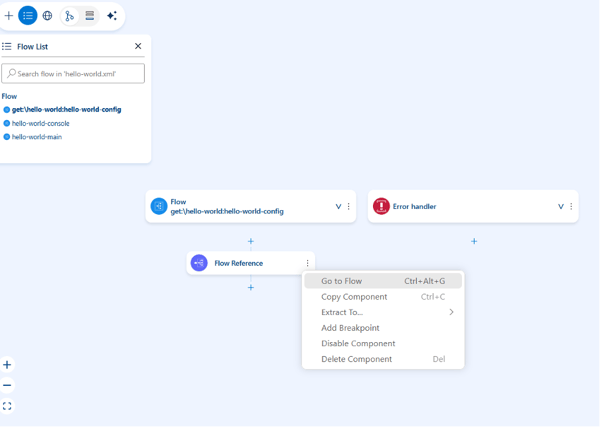
Previously we had to search for the flow by either selecting it from the Flow List (top left corner in the screenshot above) or by checking other files if the implementation is split into multiple files. Quite handy!
Why it's useful
Reusable flows help teams avoid building the same integration logic more than once. Making them easier to find allows developers to trace connected logic, investigate issues and understand larger applications without spending as much time searching through different files.
3. Managing Global Configuration Elements
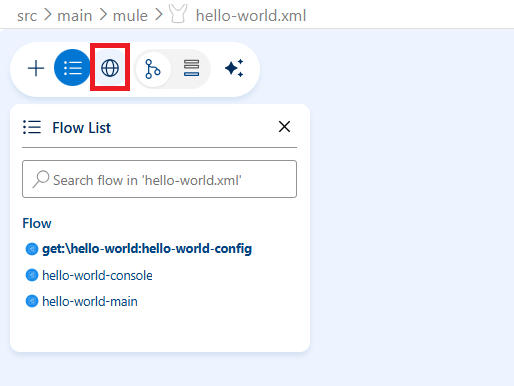
Now we can access Global Configuration Elements directly from the canvas toolbar by clicking on the globe icon highlighted in red below:
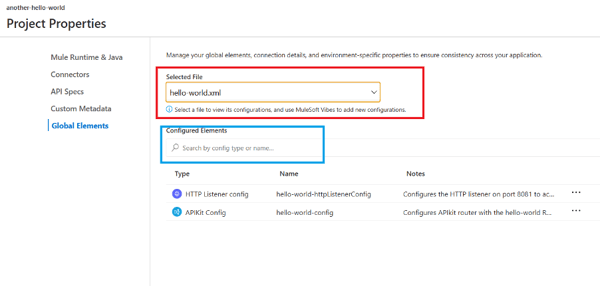
We’re now brought to the Global Elements tab of Project Properties. We can select a file in which we keep our global configs (as in the red box below). Once we select it, the list of configs pops up. If we have a lot of them, we can search by its type or name (as in the blue box below). Bringing this capability into the visual development experience makes it easier to review shared configurations without manually searching through the project’s XML files.
 Why it's useful
Shared configurations can become difficult to track as a MuleSoft application grows. A central, searchable view helps developers see what already exists, understand what is being reused and avoid unnecessary duplication, supporting a more consistent application structure over time.
4. Managing API spec versions
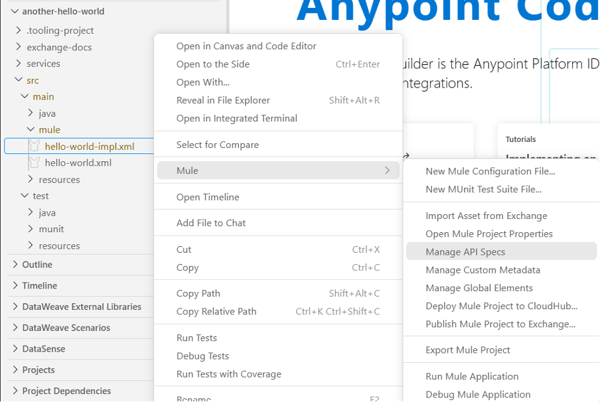
We’re now able to manage API spec versions linked to our projects from the UI. To do this, right-click on the mule configuration XML file of your project, then go to Mule > Open Mule Project Properties > Manage API specs.
Then we can see the same Project Properties as above, but this time we can access API specs.
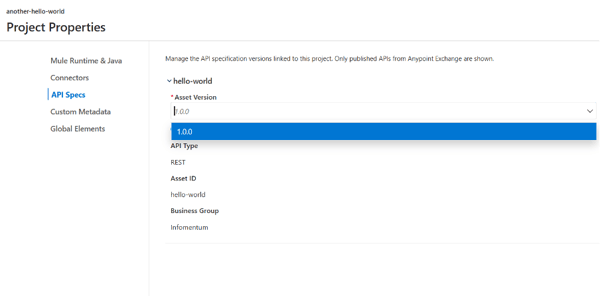
We can select the Asset Version, and if there’s a new version available we can select it and the new version will be scaffolded in our project for us.
5. Description Agent to generate or regenerate flow descriptions
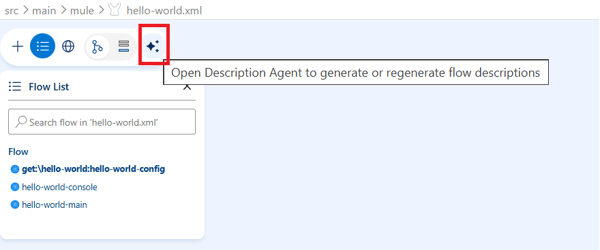
Now, we’re able to generate flow descriptions of their components using the AI Description Agent. To do this, click on the icon highlighted in the red box.
Then we can see a window pop up in MuleSoft Vibes:
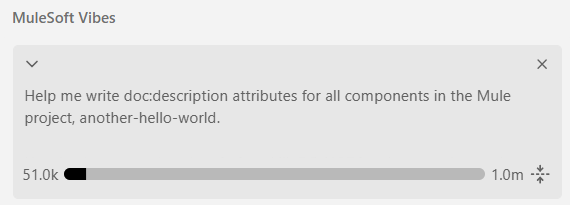
What is happening behind the scenes is that Agentforce is loading the skill ‘generate-doc-description’. Skills are reusable instruction sets that MuleSoft Vibes activates only when they are applicable to a task we’re trying to execute. The one which we used in our project is a default one, and the full list can be found here.
Let’s take a look at how it works:
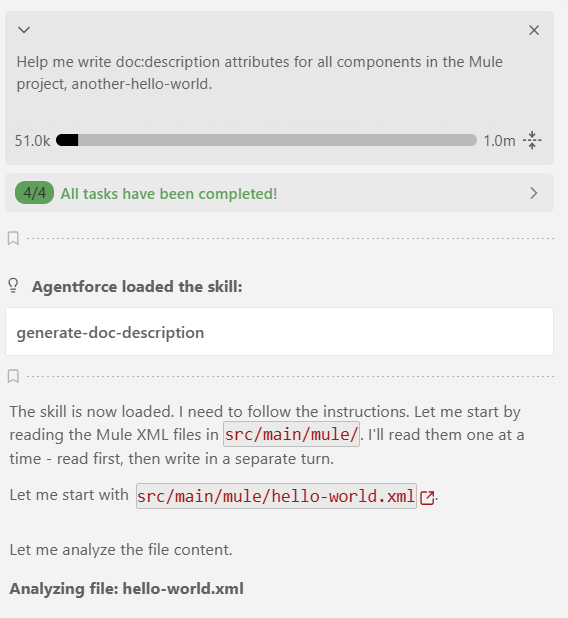
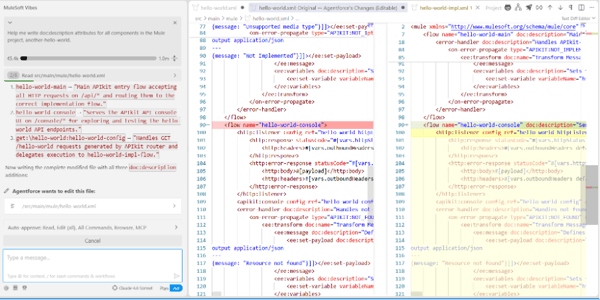
It starts by analysing each of our Mule XML configuration files and adding an appropriate description to each of the flows and components, like below:
Once it adds all the descriptions, it summarises the changes done in a table for us:
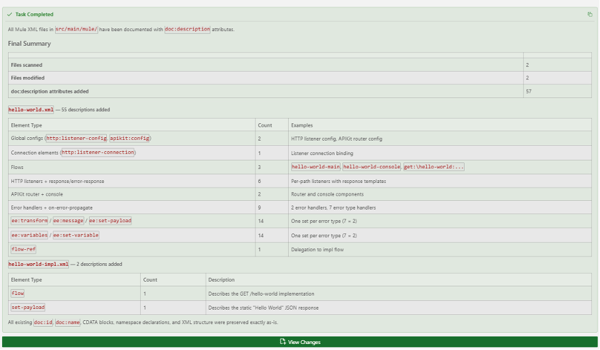
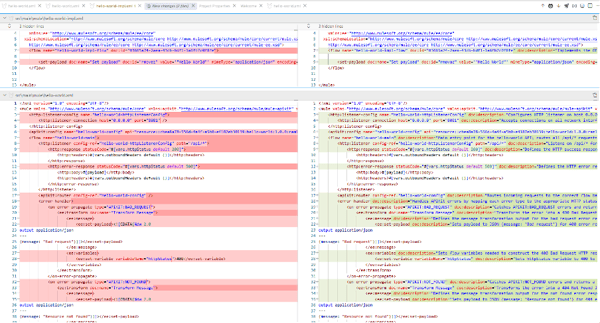
We can also see the changes by clicking on ‘View Changes’ at the bottom of the table. This opens a comparison of the files, with the new descriptions highlighted in green:
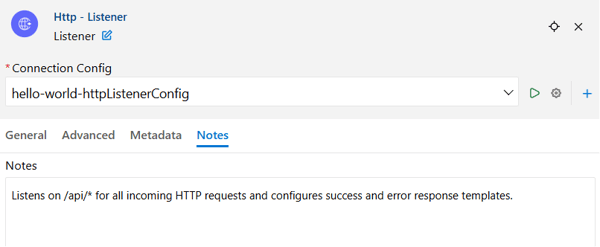
We can also see the description in the ‘Notes’ section of each component in the UI.
Being able to review the proposed changes before accepting them is important. AI-generated descriptions should still be checked by someone who understands the purpose and context of the integration. The Description Agent can accelerate the work, but the development team remains responsible for confirming that the documentation is accurate.
Why it's helpful
Documentation can quickly fall behind when teams are focused on delivery. The Description Agent provides a faster starting point, supporting smoother handovers and making unfamiliar applications easier to understand. It doesn’t replace good naming, wider architectural documentation or developer judgement, but it can help teams capture useful context that might otherwise be missed.
Small updates that can make a wider difference
Together, these features make Anypoint Code Builder easier to navigate, understand and maintain. Developers can trace reusable flows faster, manage shared configurations and API versions more easily, and use AI to support documentation.
As integration estates grow, improvements like these can reduce repetitive work and help teams make safer, better-informed changes. AI may accelerate parts of the process, but developer review, testing and good engineering practice remain essential.
I’ll be back with more Anypoint Code Builder updates in the coming months. In the meantime, explore our integration services or speak to our team about getting more from your integration estate.
.png)